Editor
The editor is the main interface for creating processes. It allows users to design, edit, and visualize their processes using BPMN 2.0 notation.
Overview
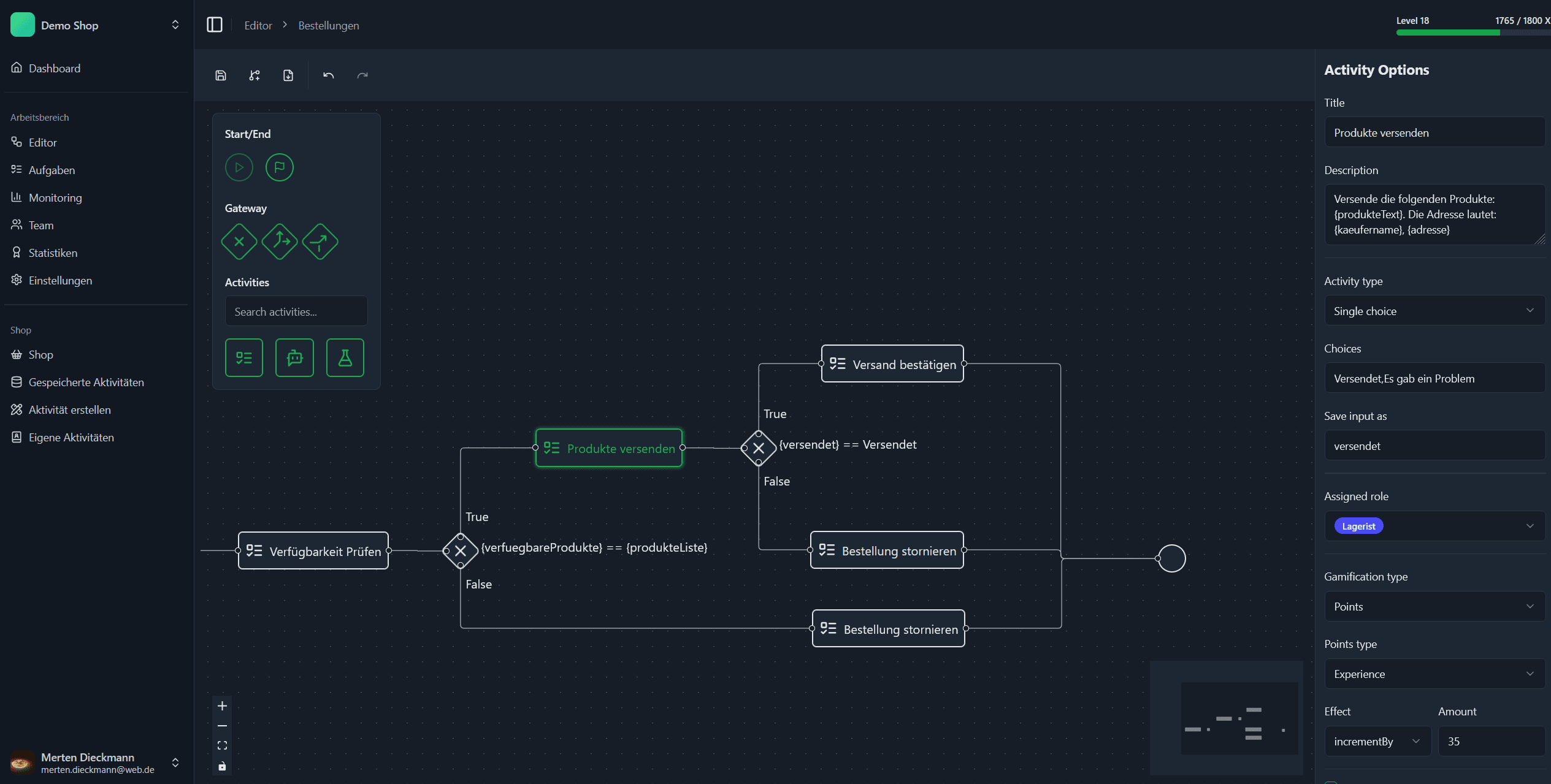
The editor is the main interface for creating processes. It allows users to design, edit, and visualize their processes using BPMN 2.0 notation. The editor provides a user-friendly drag-and-drop interface for adding and connecting nodes, as well as a property panel for configuring node options for selected nodes.
Node Selection
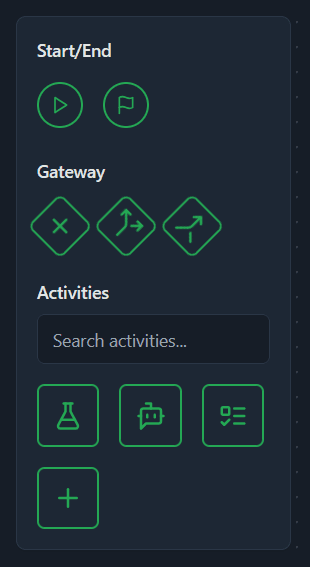
On the left hand side of the editor, you will find a list of available nodes. You can drag and drop these nodes onto the canvas to create your process. The available nodes are categorized into different sections. When you have added some custom nodes from the Shop section they will be available here under Activities.
Canvas
The canvas is the main area where you design your process. You can drag and drop nodes from the node selection panel onto the canvas, connect them, and configure their options. The canvas provides a grid background to help align nodes and connections.
Property Panel
The property panel is located on the right side of the editor. It displays the options for the currently selected node. You can use this panel to configure the node's properties, such as input and output variables, conditions, and other settings. The options available in the property panel depend on the type of node you have selected.
Toolbar
The toolbar at the top of the editor provides several actions you can perform on your process model:
- Save: Save the current process model.
- Export to .BPMN: Export the current process model as a BPMN 2.0 XML file.
- Undo: Undo the last action.
- Redo: Redo the last undone action.
- Create Process Instance: Create a new instance of the current process model. This will open a dialog where you can enter the input variables defined in the Start node. You can also find a URL to the API endpoint here that you can use to start a process instance programmatically.